












How to create drawings to document your field work

Creating drawings, presenting results, and documenting work are essential parts of everyday tasks.
With the Drafting module, Infinity supports your workflows. Learn how to create, edit, and manage drawings in Infinity to effectively document your work. Streamline your workflow by using CAD templates with predefined text styles, layers, units, and other essential settings. Save these as Infinity templates to ensure consistency and efficiency across projects. Enhance your results with clear annotations and presentation. Share your deliverables easily by exporting to PDF or CAD formats.
Learn more about our Drafting workflow in this article, or if you prefer to watch a tutorial video, go to the bottom of this page.
Create a Drawing or a Sheet
A drawing is an ordered collection of sheets. It helps to group a single deliverable of multiple sheets as a single entity. A project can have multiple drawings.
A sheet represents a single sheet of paper. The units, page size and page orientation are some of the properties of a sheet. Thus, a drawing can have different sheets with different page sizes if required.
To create a drawing, select Drawing in the Drafting ribbon bar. A new drawing with an empty sheet will be created. It becomes available in the navigator and the inspector and opens in the drawing view.
To create a sheet, select a drawing in the navigator or the inspector to add the sheet to, and select Sheet in the Drafting ribbon tab. A new sheet is created and added to the selected drawing. The new sheet becomes active if the drawing was open.
The Drafting Project Info & Settings define the units, page size and orientation of a new sheet. You can easily modify those settings and save them to the Infinity project template.
Import CAD
Creating templates from scratch can be a time-consuming process. To streamline your workflow, start new drawings using existing CAD templates that include predefined text styles, layers, units, and other drawing settings. Simply import your CAD files (DWT, DWG, DXF) as drawings or sheets, modify or update them if necessary and save them as Infinity templates. All drawing content and settings will be stored within the Infinity Templates.
To import one or more sheets from a CAD file to an existing drawing, simply select the drawing in the navigator or the inspector. In the Drafting ribbon tab, select Import Template > Sheet. In the Import Template dialog, browse to the file to be imported, supported CAD file types are DWT, DWG & DXF. In the Import Settings pane l, select the sheets, and select Import.
A new sheet is imported, it becomes available in the inspector and navigator, and it opens in the drawing view.
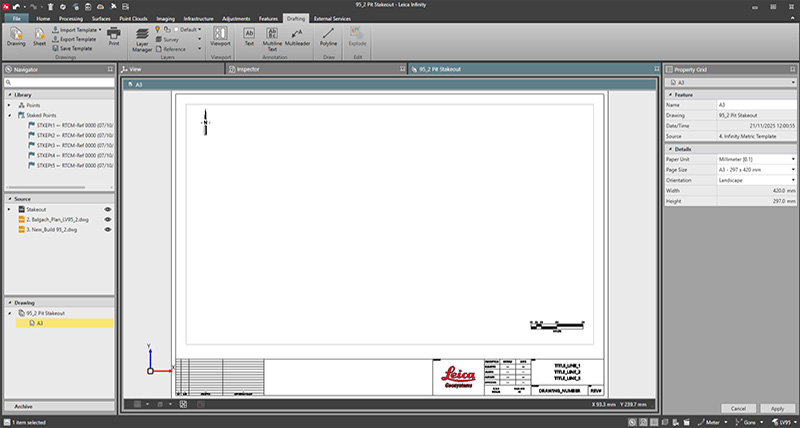
Create a Viewport
A viewport is a window in a sheet to the objects in the main graphical view. It acts like a camera into the view of Infinity. A sheet can contain multiple viewports to display different views, scales, or visual styles of the same objects at the same time. The space inside a viewport containing objects from the graphical view is typically referred to as the model space. The space outside a viewport, in the sheet, is referred to as paper space.
To create a viewport, make sure the sheet is selected in the drawing view and in the inspector and the drawing is active by clicking in the sheet space. In the drafting ribbon bar select Viewport.
The cursor is shown now as a cross, that means it is in drawing mode, the crosshair snaps to the grid node nearest to the cursor position (if the Show Grid is activated in the drawing strip bar). The coordinates of this grid node are used as input.
Draw the viewport in the sheet by selecting two points for the viewport. A new viewport is created and shown in the sheet. A viewport fits all the visible content from the graphical view in its extents.
In the properties grid you can modify the viewport properties as layer, style, position, size, scale and visual style.
To adapt the view in the viewport, enter the viewport with double-click. To zoom in or out - move the mouse wheel. To pan - hold the mouse wheel down and move the mouse. Exit the viewport by double-clicking outside the viewport in the sheet to save the changes.
To set the viewport scale, select the viewport and enter required scale in the properties grid to apply changes select Apply. Viewport model space view updates to reflect the change in scale. To prevent accidental changes of the viewport scale and the view, it is recommended to lock the viewport. When the viewport is locked, zoom and pan interactions always happen in the sheet instead of the viewport while it is active. Lock the viewport with the Padlock in the Property Grid.
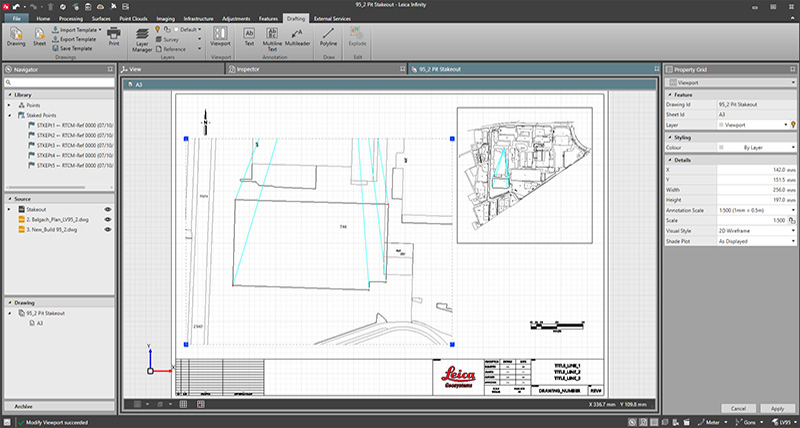 Image 2: Display of two different views of your field data by using viewports.
 Override Layer Properties in a Viewport
Objects in a viewport can be displayed independently of how they appear in the graphical view or other viewports in the same or other sheets. For example, it is possible to display the same objects with different visibilities and styling across multiple viewports. This allows for customised presentations or detailed views within individual viewports, without modifying the global layer configuration.
With the viewport layer override, you can hide layers and change the layers style including the colour, width or line style.
To change the view in the viewport, enter the viewport (by double-clicking inside it) and open the Layer Manager in the Drafting ribbon bar.
In the Layer Manager, define the visual settings in columns with the VP prefix. Those columns control the style for the selected viewport . The override is applied, and the changes are visible in the viewport immediately. Exit the viewport by double-clicking outside the viewport in the sheet to save the changes.
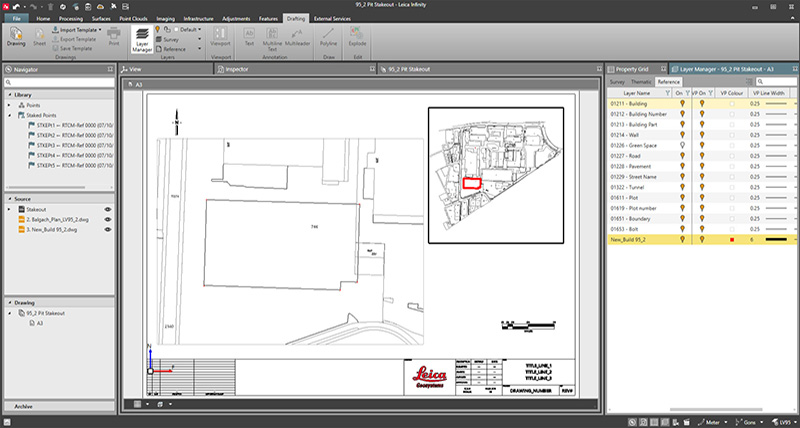
Image 3:Objects in viewports displayed independently.
Assign Blocks for Specific Point Roles
Point Role blocks can be defined in the Code Manager and are displayed inside the Drafting module viewports, and if the export option is enabled, they are included in the CAD export (DXF/DWG).
To modify the Point Roles display in the viewport, go to the Features tab in the ribbon bar and open the Project Code Manager.
In the Project Code Manager, in the Point Roles tab you can define different blocks for specific project point roles. Select the blocks and assign them to layer. Select OK to close the Project Code Manager and save the changes. Point Roles Blocks are part of the Code Table and can be shared across projects.
The Point Roles Blocks are shown in the sheet view but might not be well visible due to their size. To change the Point Roles Blocks size the Annotation Scale can be used. Each viewport has a property called Annotation Scale, which determines how annotative text or blocks are rendered within that viewport. Annotation Scale helps define how to scale the labels and blocks in the model space.
To change Annotation Scale, select the viewport and in the properties grid, select the Annotation Scale from drop-down list. Press Apply to change and see the changes in the viewport.
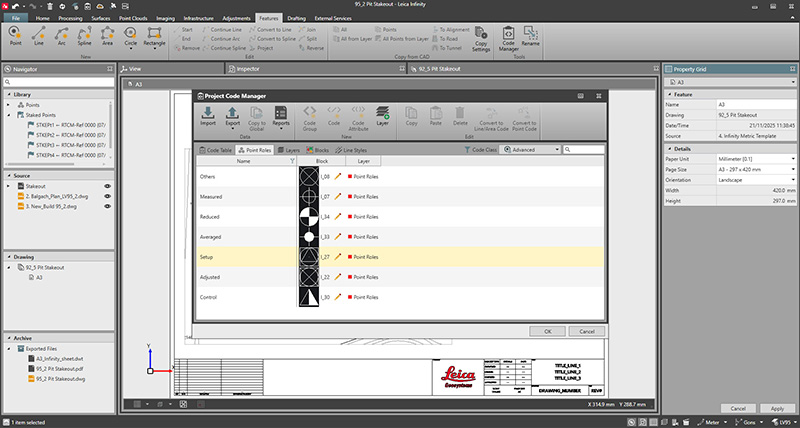
Image 4: Defined Blocks for Specific Point Roles.
Annotate with Different Text Styles and Multileaders
Annotation helps to add notes and details about the survey and the specific features contained within. Infinity provides three types of objects to help annotate the sketch, namely text, multiline text and multileader. These objects are placed in paper space.
Text objects are typically used for annotations, labels, or other descriptive elements that enhance the clarity and presentation of the sketch. To add a text, select Text or Multiline Text in the Drafting ribbon bar and click in the paper space where the text is to be placed.
In the Text / Multiline Text window you can define the text content and style, select Create to add the text. Once the text is created, the text properties and style can be adjusted in the properties grid. The text position can be adjusted by selecting the text grip and with a single click moving it to a new position.
Multileaders can be used for annotating specific features or objects with descriptive text and leader lines. They combine graphical pointers with text labels for clear communication. The text in a multileader can be multiline.
To create a multileader, in the Drafting ribbon tab, select Multileader. Click in the paper space to specify the position of the arrow, and again to specify where to end the leader line. This launches the Create Multileader window where you can define the multileader content and style.
Once Multileader is created you can modify it in the properties grid, and to adjust the position use the multileader grips.
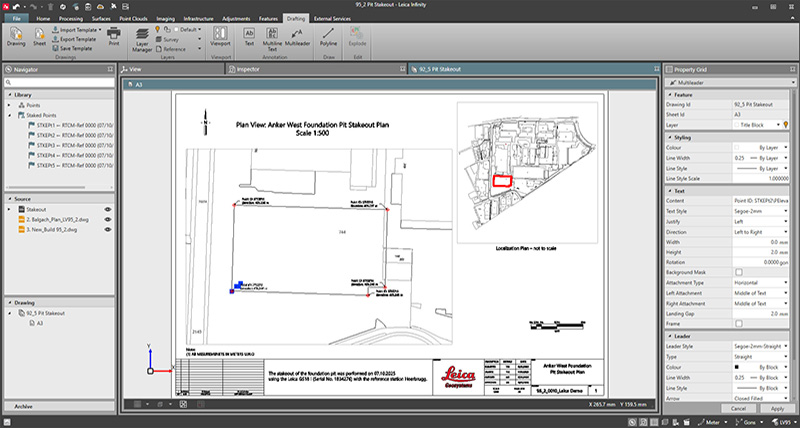
Image 5: Drawing annotated with different styles text and multileaders.
Export to CAD Template
Any updates made within Infinity templates can be exported back to CAD formats, either as templates or as drawings.
To export the drawing or a sheet to a template, select the drawing or a sheet in the navigator or the inspector. In the Drafting ribbon tab, select Export Template. In the Export window, define the file name and format (supported export template formats include DWT, DWG and DXF) and select Export.
When a drawing is exported, all its sheets are exported as layouts in the CAD file.
When exporting a sheet, it is exported as the only layout in the CAD file.
Save to a Template
Store imported or create in Infinity drawings or sheet to Infinity templates. All drawing/sheet content and settings will be saved. These stored templates can be easily reused across projects, helping you save time and maintain consistency.
To save the drawing or the sheet to the template, select it in the navigator or the inspector. In the Drafting Ribbon bar, select Save to Template. In the Save Drawing To Template/ Save Sheet To Template define the name and press Apply.
Once saved, they appear in the new drawing and sheet option in the dropdown menu in the Drafting ribbon tab. This makes it easier to get started with creating new drawings and sheets.
Saved drawing and sheet templates are available in File > Info & Settings > Drafting, where you can manage saved templates.
Print to PDF
Drawings or sheets can be exported to PDF. Simply select a drawing or a sheet in the navigator or inspector and select Print in the Drafting ribbon bar. In the Print window, define the File Name and select Save. Open the exported file in any standard PDF reader.
Export to CAD Drawing
To export the data and drawing to CAD, select Export in the Home ribbon bar. In the Export dialog, define the File Name, select the Output Type as AutoCAD – DXF, DWG or BricsCAD.
To include the drawings and sheet with your data, select Drawings in the Export Settings.
To export assign blocks to the specific point roles, select Point Role Symbols in the Export Settings and Export.
Open the exported file in the CAD software. All measured and referenced data are included.
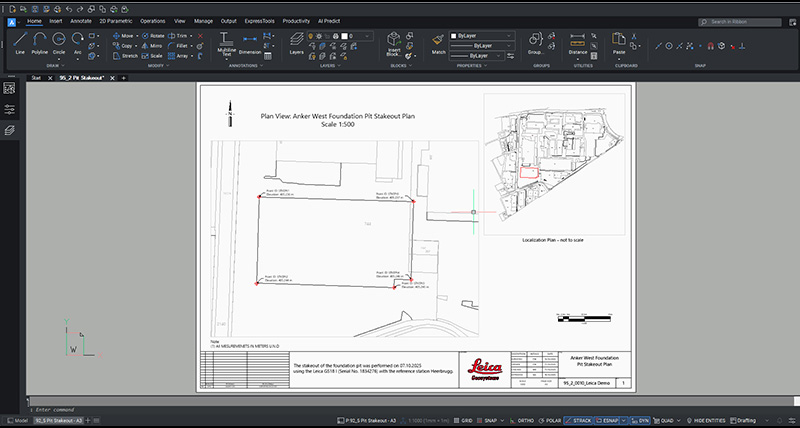
Image 6: All measured data and the template included in the CAD drawing.
The full tutorial, about How to create drawings to document your field work and the example data is available in the Infinity Help & Support > Localization Tool.
Watch the tutorial videos to learn how to create drawings to document your field work in more detail:

For more Leica Infinity tutorials, have a look at our Leica Infinity Tutorial YouTube Playlist.
Author
Monika Bodziak
Product Engineer, Leica Infinity
Product Engineer, Leica Infinity
Leica Infinity

Contact Leica Geosystems
Find your Leica Geosystems contact for sales, support and technical service.
Find your Leica Geosystems contact for sales, support and technical service.


$name
As of v7.0.1, Safari exhibits a bug in which resizing your browser horizontally causes rendering errors in the justified nav that are cleared upon refreshing.
As of v7.0.1, Safari exhibits a bug in which resizing your browser horizontally causes rendering errors in the justified nav that are cleared upon refreshing.